
Create a raffle using the PineRaffle app (step-by-step instructions)
Want to supercharge your store with the thrill of raffles and giveaways? PineRaffle is your secret weapon! Get ready to unlock a world of engaging promotions—it's easier than you think. Here are step-by-step instructions for creating a new raffle.
Dashboard:
- Go to your Shopify admin page and click on Apps. Select the PineRaffle app.
- On the Dashboard page, the first step is to activate the storefront widget. Click on the Activate button and turn on the PineRaffle toggle button.
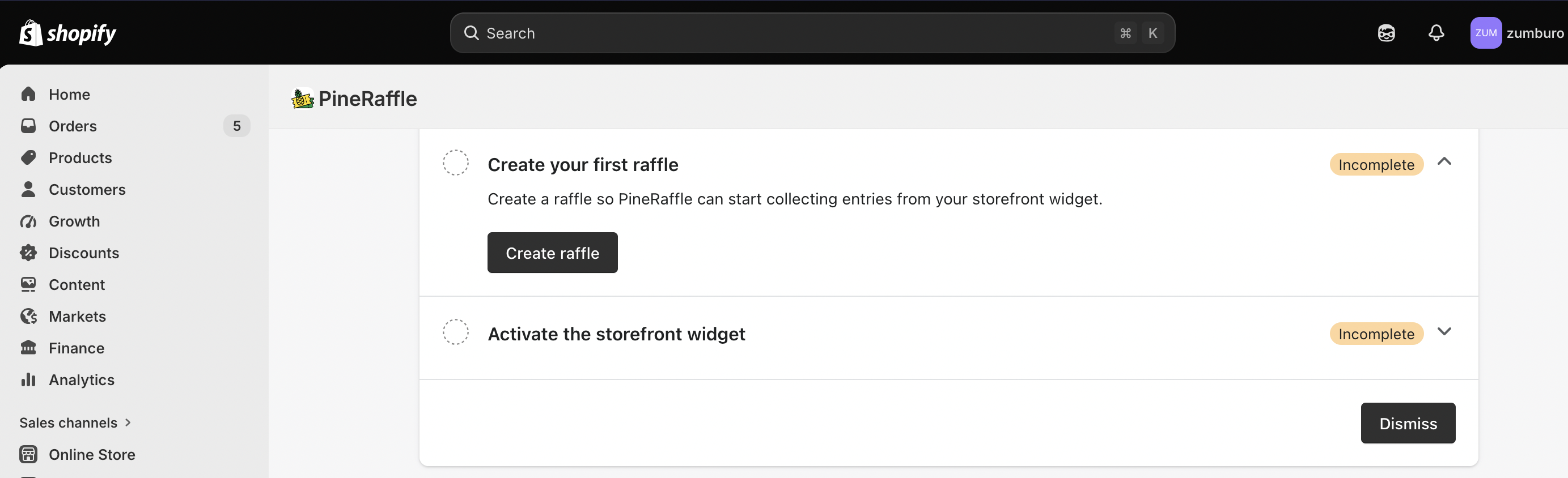
Click on the Create raffle button. Setting up a raffle is organized into three tabs, each covering a different part of the setup:
- Configure Raffle — the core raffle logic: raffle type, name, active dates, ticket sequence, prize, and winners.
- Configure Design — how the raffle widget looks and behaves on your storefront (widget header, prize display, timer/progress, theme colors, and more).
- Configure Email — which email templates are sent to participants and winners.
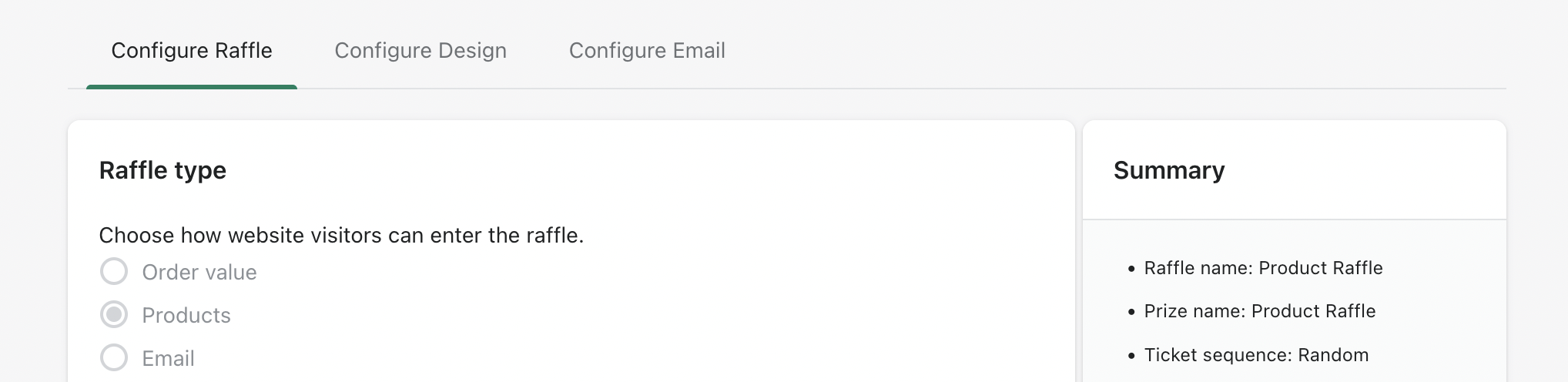
A Summary panel on the right updates live as you fill in each section, so you can review your raffle setup at a glance before publishing.
Configure Raffle
Below is the list of attributes for the raffle creation and its associated details
| Attribute Name | Description |
| Raffle Type: | Type of raffles you can create on the store. |
| Raffle Name: | The name of your raffle. |
| Active dates: | The dates on which the raffle will be active in your store. Here, you can select the start and end date or end the raffle after selling the ‘N’ number of tickets. |
| Ticket Sequence: | Controls how ticket codes are generated for entries in this raffle. |
| Price Name: | This could be the product's name, a discount of 10% on a specific product, a gift card, or anything for which you create a raffle. |
| Prize: | The prize you want the winner of the raffle to win |
| Number of Winners: | Set the number of winners you want for the raffle to win |
| Discount expiration date: | Set the prize expiration date. This date will be communicated to the winner. |
Raffle Types
There are three types of raffles that you can set up for your Shopify store.
a. Order Value: This option encourages customers to spend more, as it allows you to award raffle tickets based on their order total. Order value is the most popular type of raffle merchants set up for their stores, due to its simplicity and appeal to end customers.
Order value is the most most type of raffle customer set up for their stores, due to its simplicity and appeal to the end customers
b. Products: This option is ideal if you want to market a specific product or collection from your catalog. You can include the product itself or grant raffle tickets.
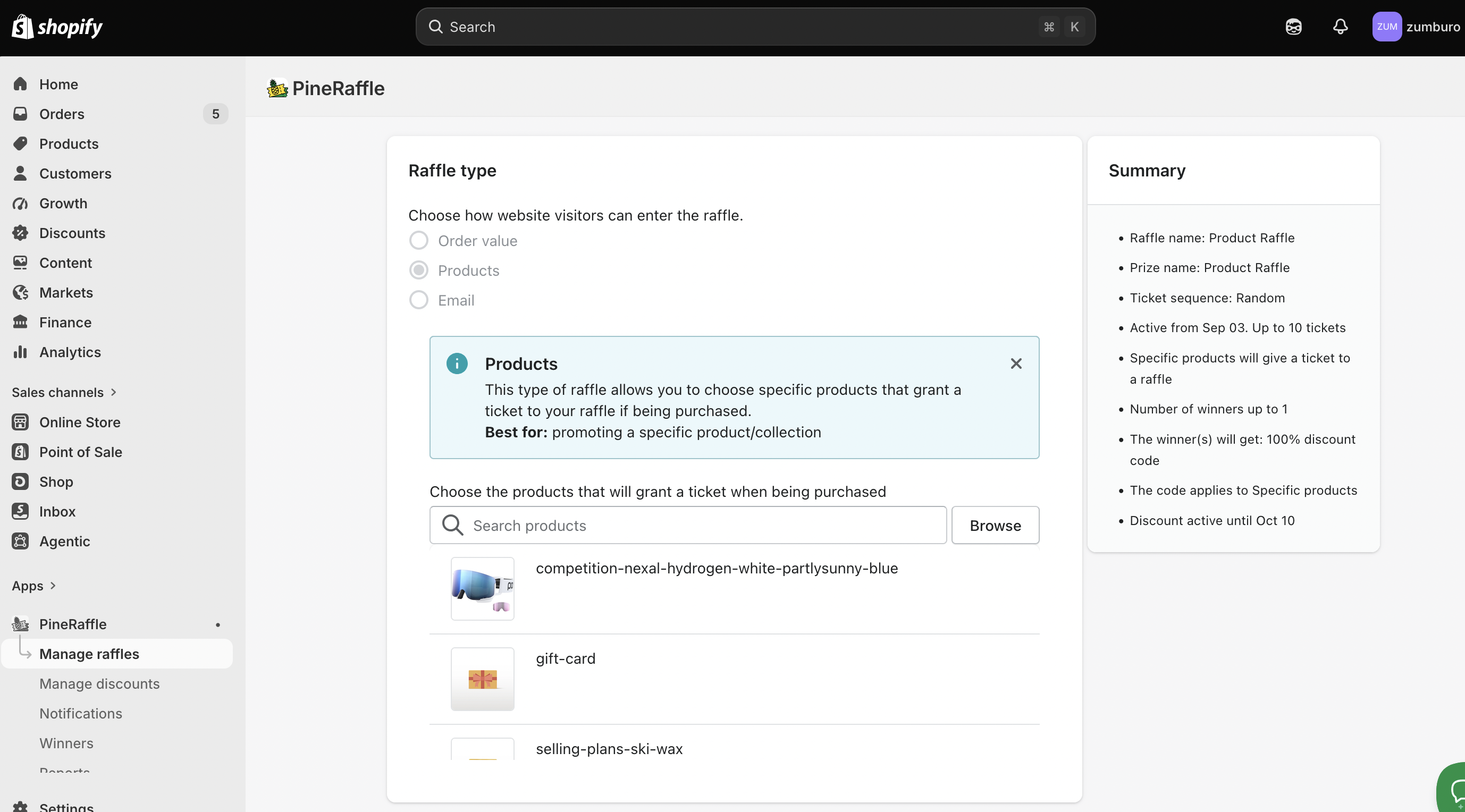
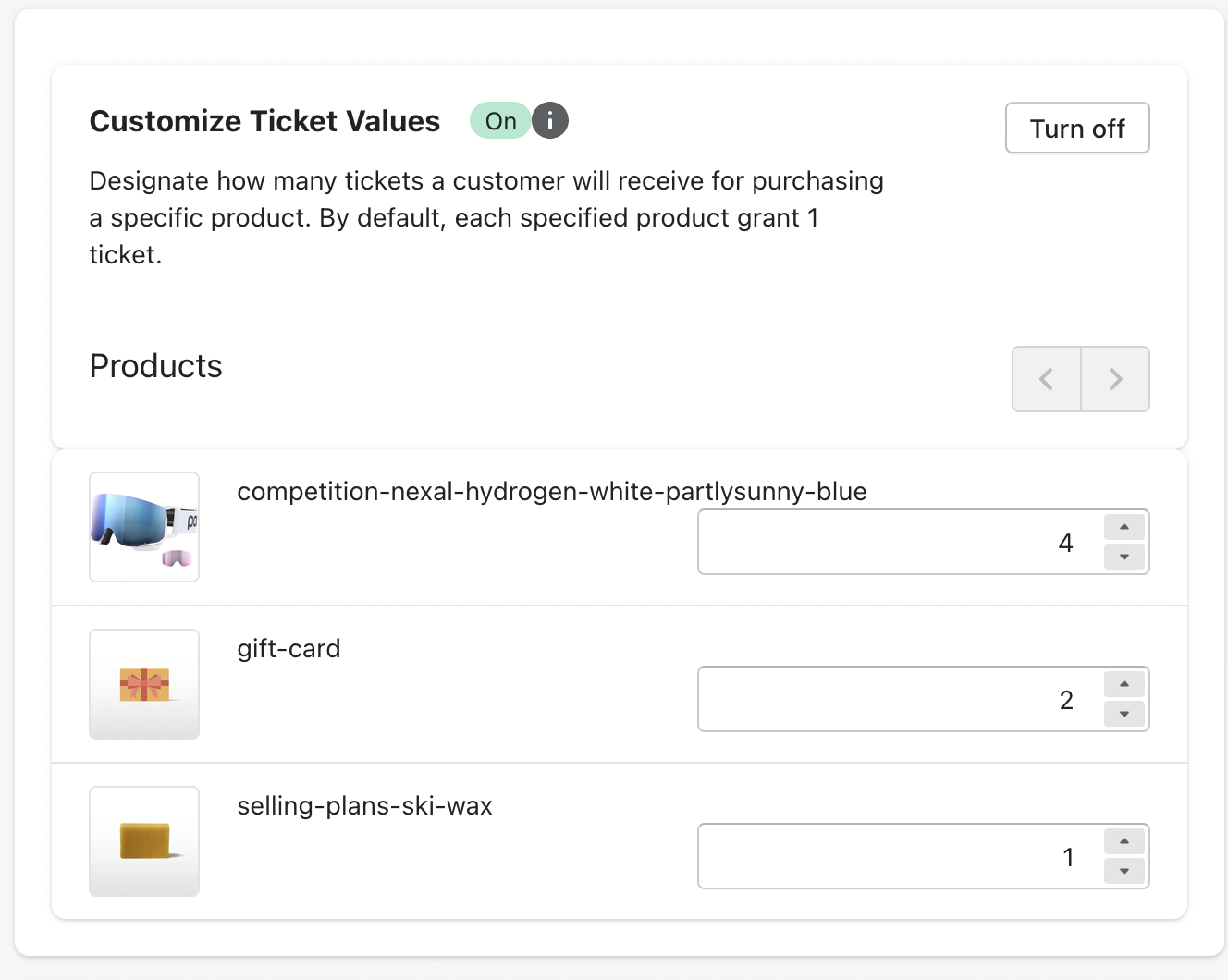
Note: By default, each specified product grants one ticket. However, if you subscribe to either of 'Grow' or 'Pro' plan(s), you can customize ticket values to designate how many tickets a customer will receive for purchasing a specific product.
c. Email: Collect customer emails and allow them to enter the raffle by providing their contact information (available with either Grow or Pro plan subscription).
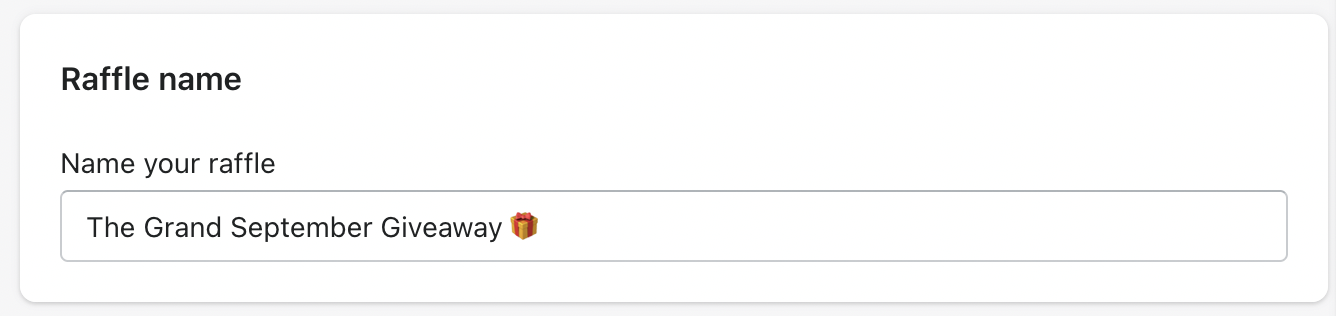
Raffle Name
Enter an exciting raffle name that will grab your customers' attention on the Pineraffle panel in your storefront.
Raffle Completion
This section controls when your raffle campaign starts and ends.
Start date — The date your raffle becomes active and starts accepting entries.
End the raffle by number of tickets — Check this box if you want the raffle to automatically end once a specific number of tickets have been issued, rather than ending on a fixed date. This is useful for raffles where you want a guaranteed, predictable ticket count instead of an open-ended timeframe.
Once checked, enter the number of tickets in the field below — the raffle will close as soon as that many tickets have been issued, regardless of how much time has passed.
Example: Raffle that ends after 500 raffle tickets
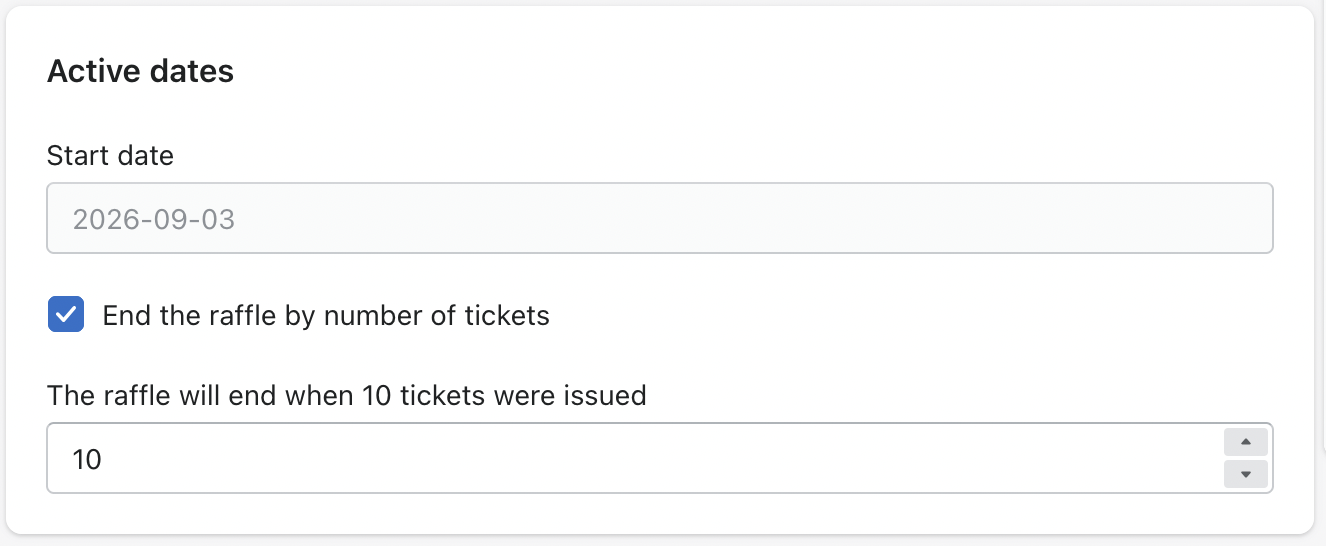
If this box is left unchecked, the raffle will run until a specific end date instead (set elsewhere), rather than ending based on ticket volume.
Ticket Sequence
Controls how ticket codes are generated for entries in this raffle.
Random (default) — Each ticket gets a unique 8-character alphanumeric code (e.g. uzXfUbCi ). No configuration needed — works well for most raffles.
Sequenced — Tickets are issued in a numbered order (e.g. 0001, 0002, 0003...) instead of random codes. Useful for raffles where merchants want predictable, ordered ticket numbers — for example, to match physical ticket stubs or make manual draws easier.
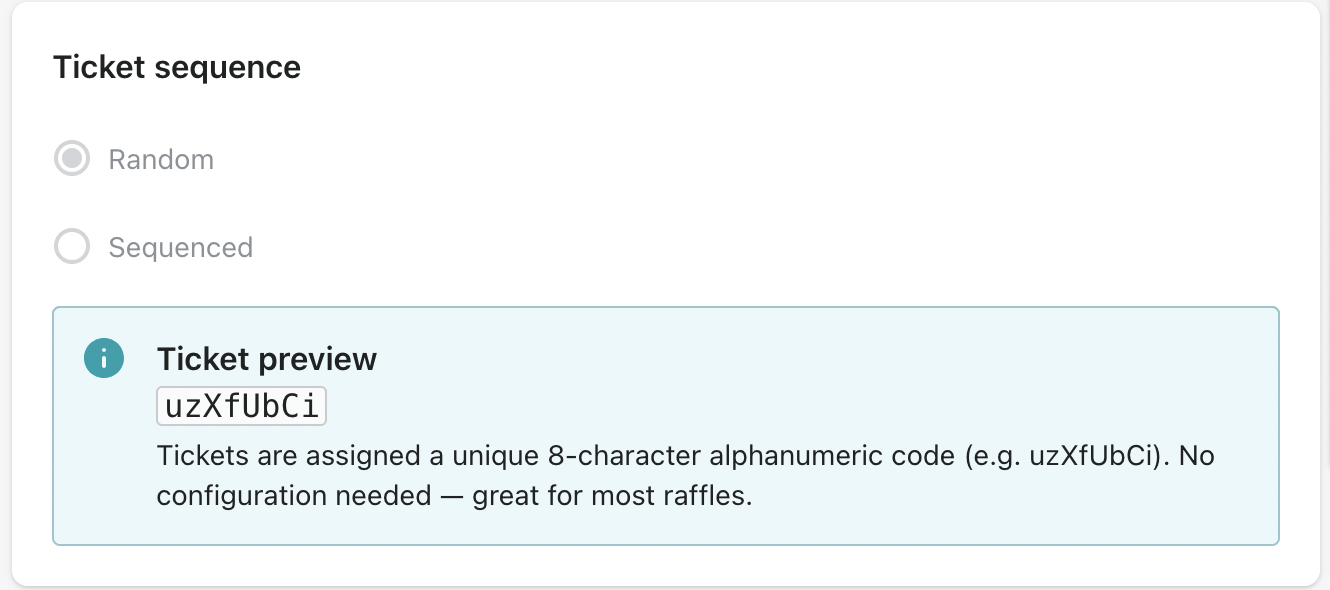
Note: Sequenced ticketing is available on the Grow and Pro plans only. Merchants on the Go plan will have this option locked and can upgrade to unlock it.
Prize Name
The prize name could be a product name if the prize is the winning item. Alternatively, it could be something else, such as a discount coupon or a gift card.
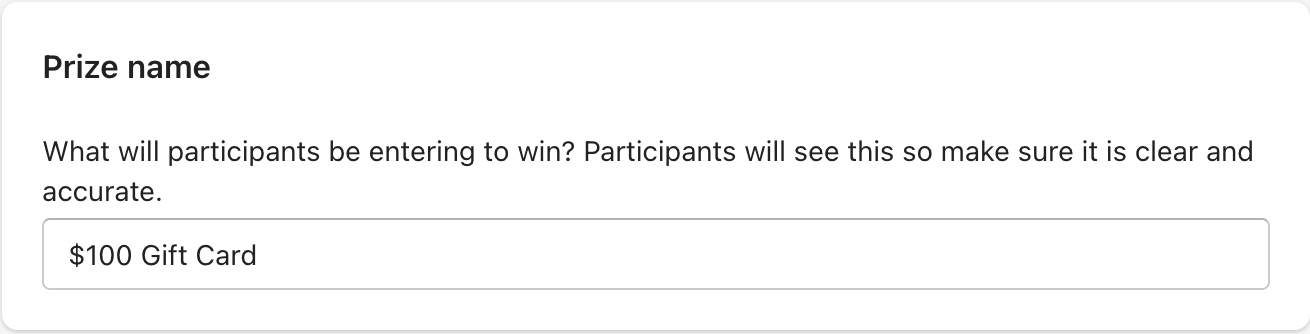
Note: This field is visible to the customer; please include accurate details to reflect the prize.
Example: How the Prize name will be displayed on the PineRaffle widget
Prize
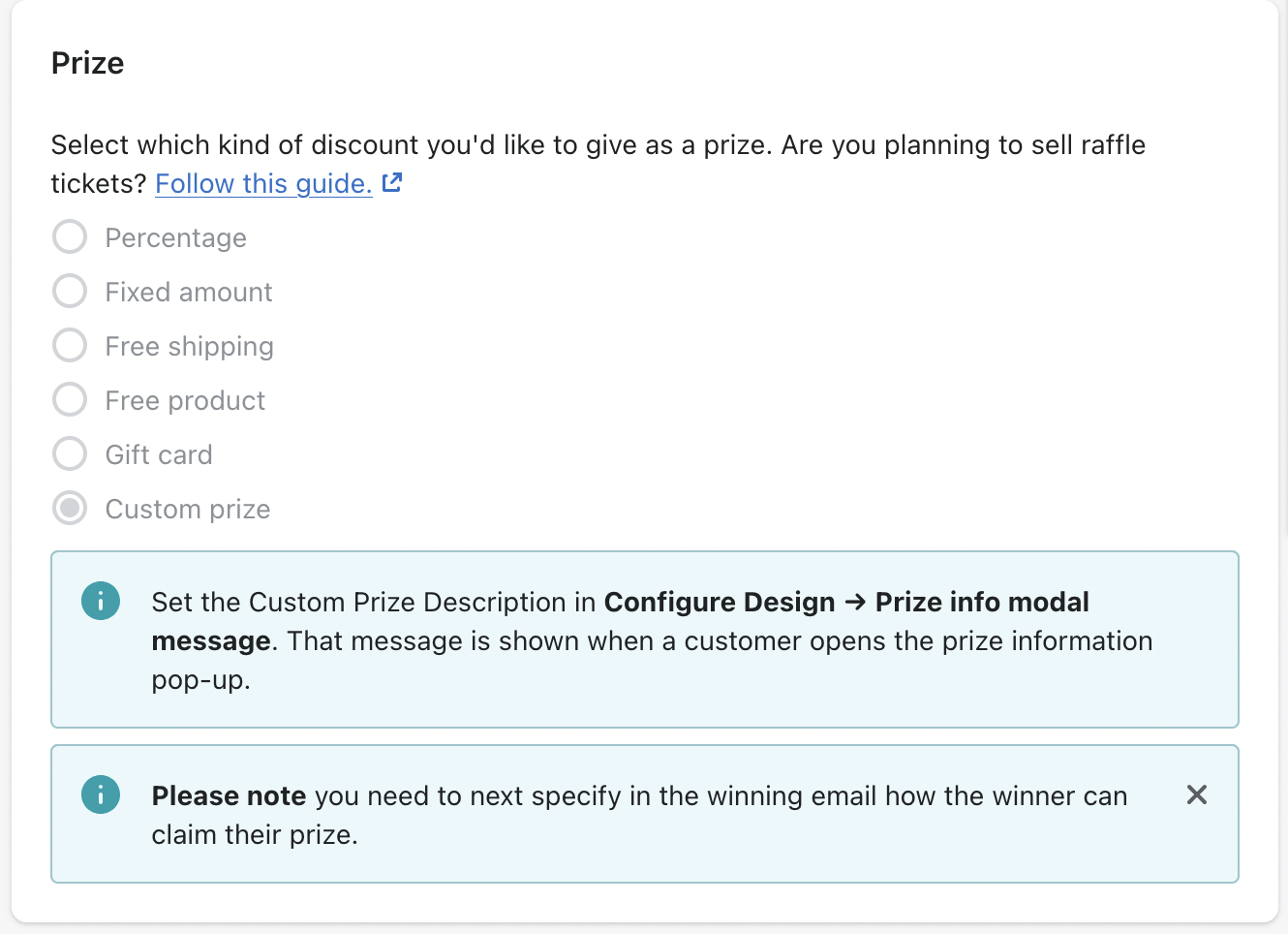
It's time to select the reward for your raffle winner! Here are the options:
a. Percentage: Give a percentage-based discount on a single product or storewide. (Example: 10% off)
b. Fixed Amount: Offer a specific dollar amount of a product or the entire purchase. (Example: $100 off)
c. Free Shipping: Cover the shipping costs for the winner's next order.
d. Free Product: Award a free product from your store.
e. Gift Card: Provide a gift card with a set value that the winner can use for any purchase.
f. Custom prize: Create a unique prize that fits your brand! Be sure to provide a clear description and image of the custom prize.
Note: if you have selected Custom price, then you can capture then details of the custom price in the Price display section in the Configure Design tab. see below for details
Number of Winners
How many people can win the raffle? — Set the number of winners to be drawn for this raffle.
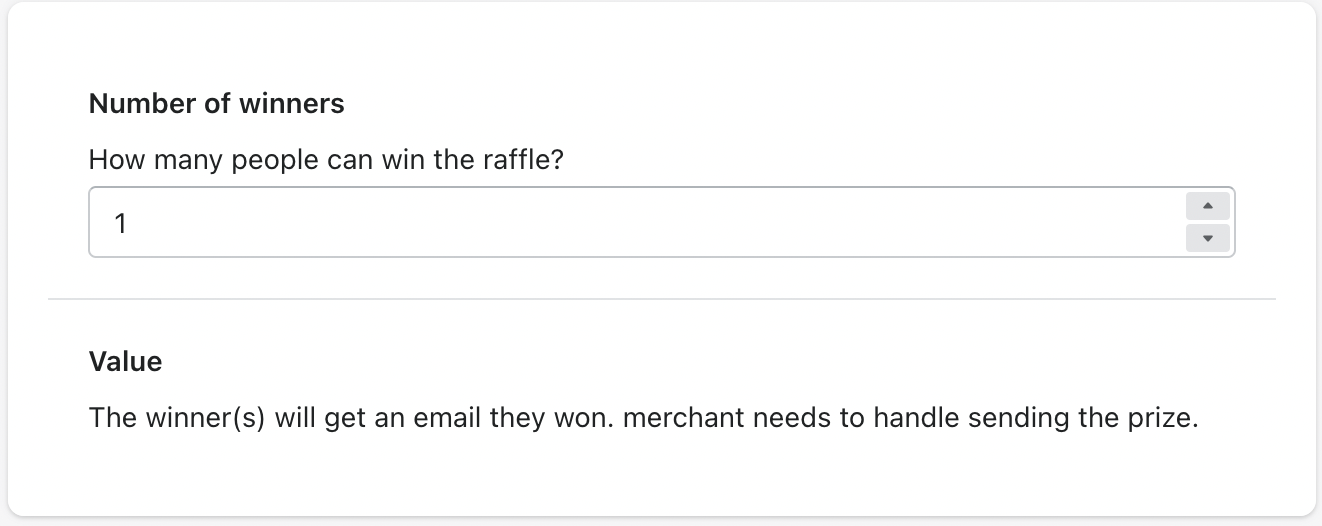
Value — This depends on the prize type selected:
- For Custom prize (or similar non-discount prizes), winners simply receive an email notifying them they've won — the merchant is then responsible for fulfilling and sending the prize.
- For prize types tied to a discount (e.g. Free Product, Percentage, Fixed Amount), winners receive a discount code (e.g. 100% off a specific product) that they can redeem themselves.
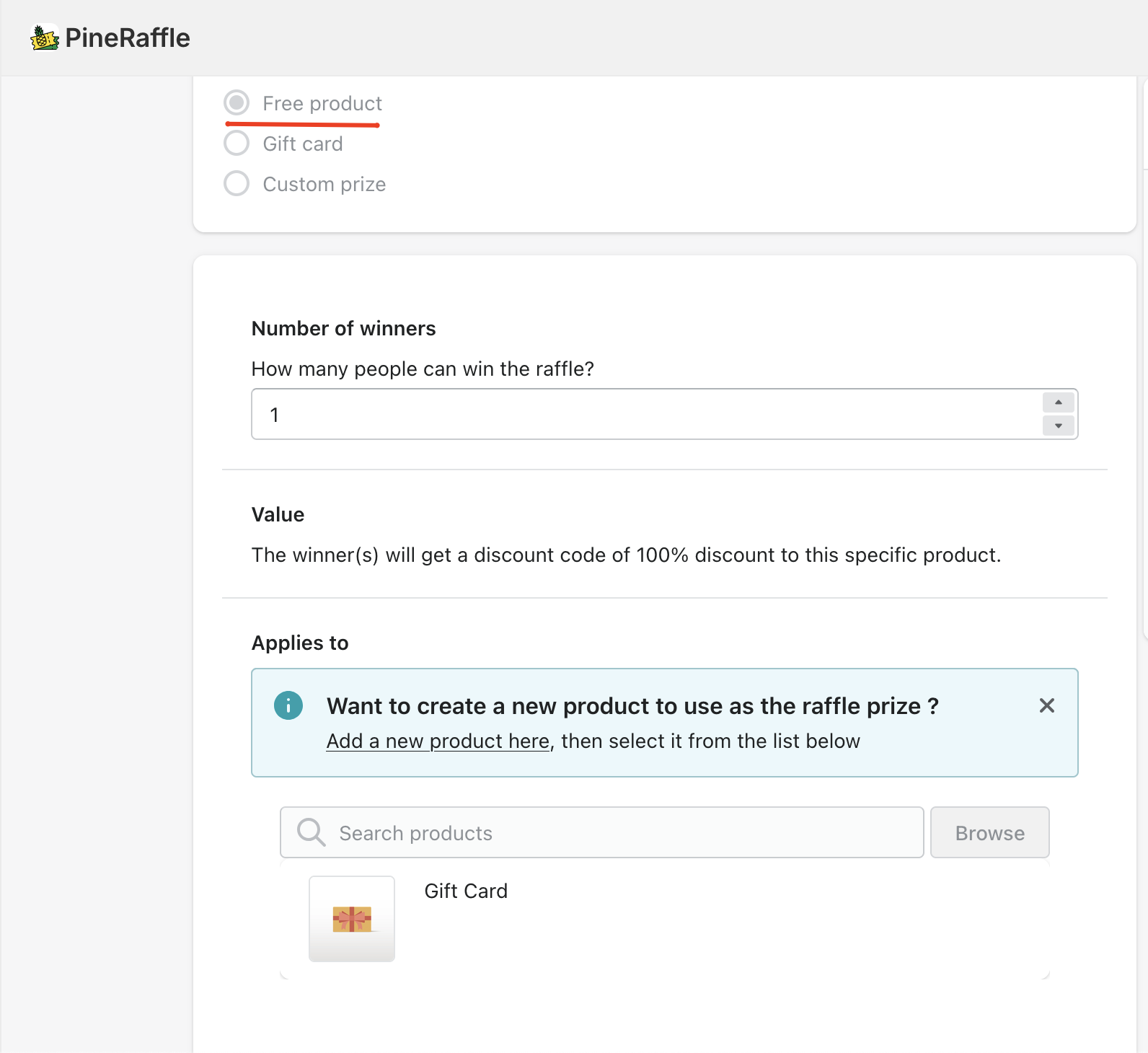
Applies to — For prize types where a discount code is generated, this section lets you select which product(s) the discount applies to. If you don't already have a product to use as the prize, you can click Add a new product here to create one, then select it from the list below.
Discount Expiration Date
Expiration date — Set the date the prize/discount code expires. This date is communicated to the winner so they know the deadline to redeem their prize.
Once you've filled out all the details, take a moment to review the Summary panel. If everything looks good, move on to the Configure Design tab.
Configure Design
This tab controls how the raffle widget looks and behaves on your storefront. A live preview panel on the right updates in real time as you make changes, so you can see exactly how the widget will appear to customers.
Floating widget
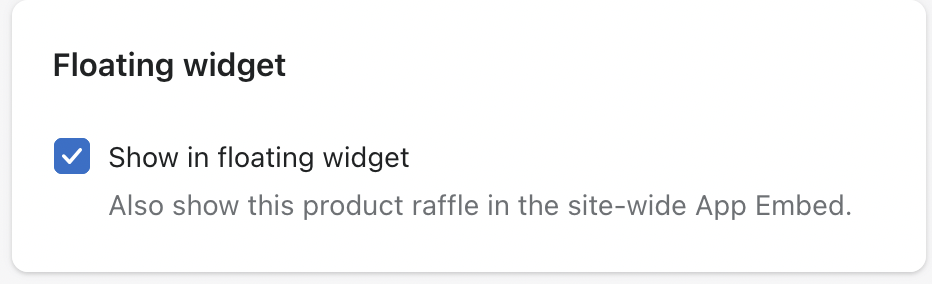
- Show in floating widget — When enabled, this raffle also appears in the site-wide floating widget (App Embed), in addition to any other placements. Turn this off if you only want the raffle to show via a specific embed block rather than the floating widget.
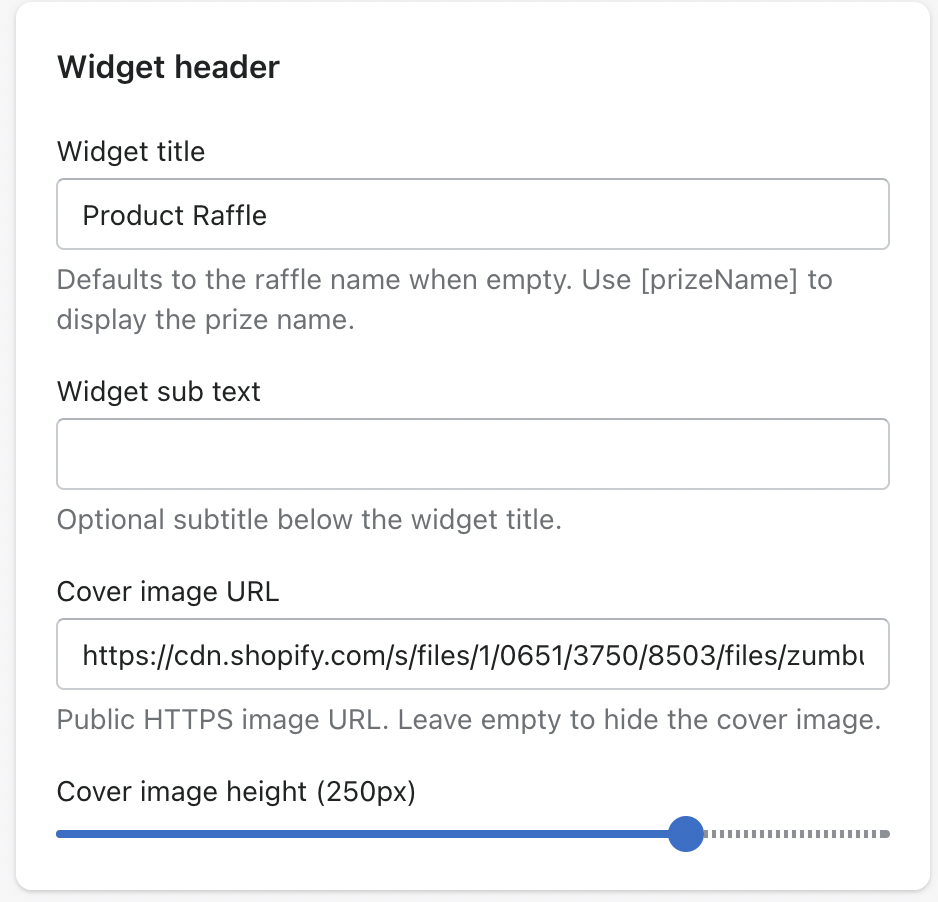
Widget header
- Widget title — The main heading shown on the widget. Defaults to the raffle's name if left empty. Supports the
[prizeName]placeholder to dynamically show the prize name instead of a static title. - Widget sub text — Optional subtitle displayed below the widget title, for additional context.
- Cover image URL — A public HTTPS image URL used as the widget's cover image. Leave empty to hide the cover image entirely.
- Cover image height — Slider to control how tall the cover image displays (in pixels).
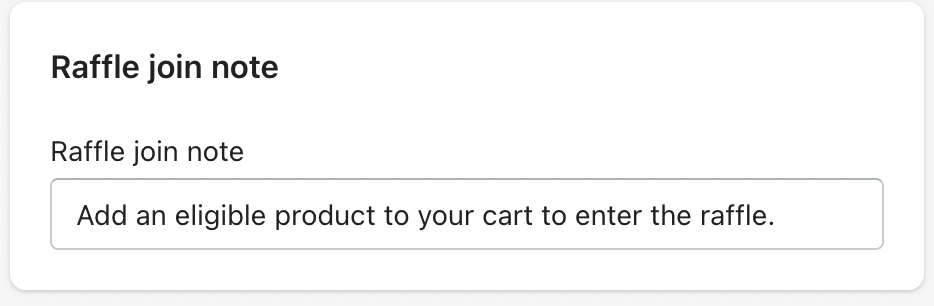
Raffle join note
- A short instructional line telling customers how to enter (e.g. "Add an eligible product to your cart to enter the raffle."). This adjusts automatically depending on raffle type but can be customized.
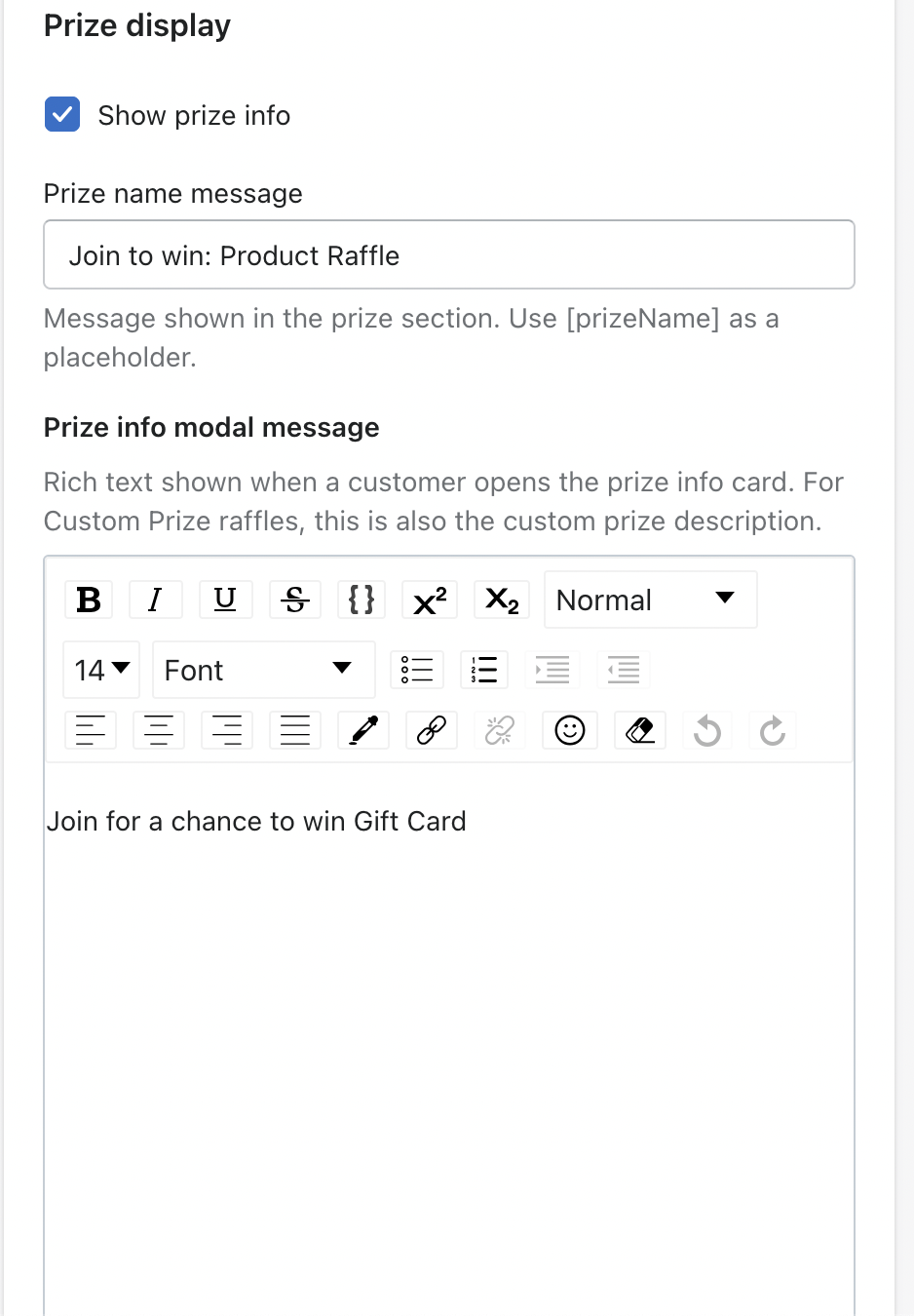
Prize display
- Show prize info — Toggle whether prize details are shown to customers at all.
- Prize name message — Headline shown in the prize section (e.g. "Join to win: Product Raffle"). Supports
[prizeName]. - Prize info modal message — Rich text shown when a customer opens the prize info card. For raffles using a Custom Prize, this field is where you describe what the custom prize actually is — since custom prizes have no predefined name/value, this is the only place customers will see what they're winning.
- Additional prize info — Optional checkbox/field to include extra prize details beyond the main modal message.
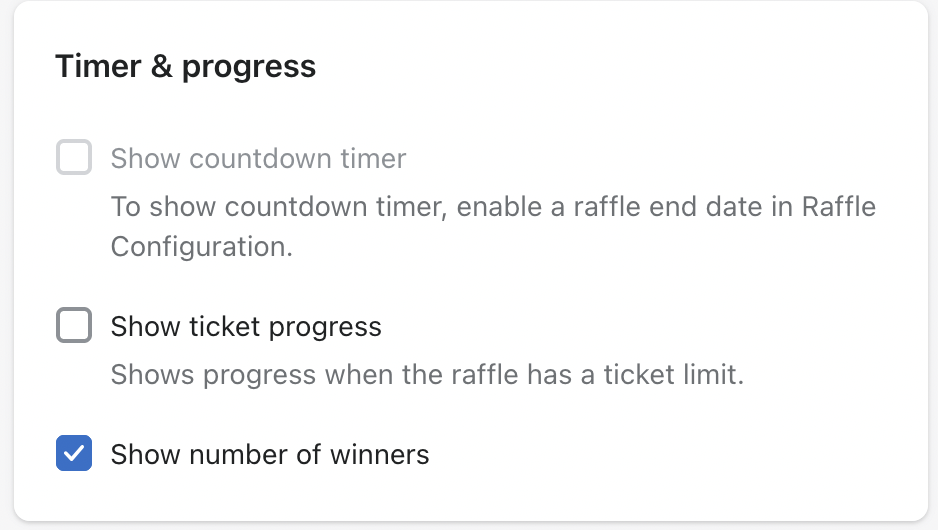
Timer & progress
- Show countdown timer — Displays a live countdown on the widget. Requires a raffle end date to be set in Configure Raffle; otherwise this option stays disabled.
- Show ticket progress — Displays a progress bar/indicator based on tickets issued. Only relevant when the raffle has a ticket limit set.
- Show number of winners — Displays how many winners will be drawn for this raffle (e.g. "1 winner will be drawn").
Call to action
- Show call to action button — Adds a CTA button on the widget (e.g. "Shop Now" / "Enter Raffle") to drive customers toward the eligible products or entry action.
How it works
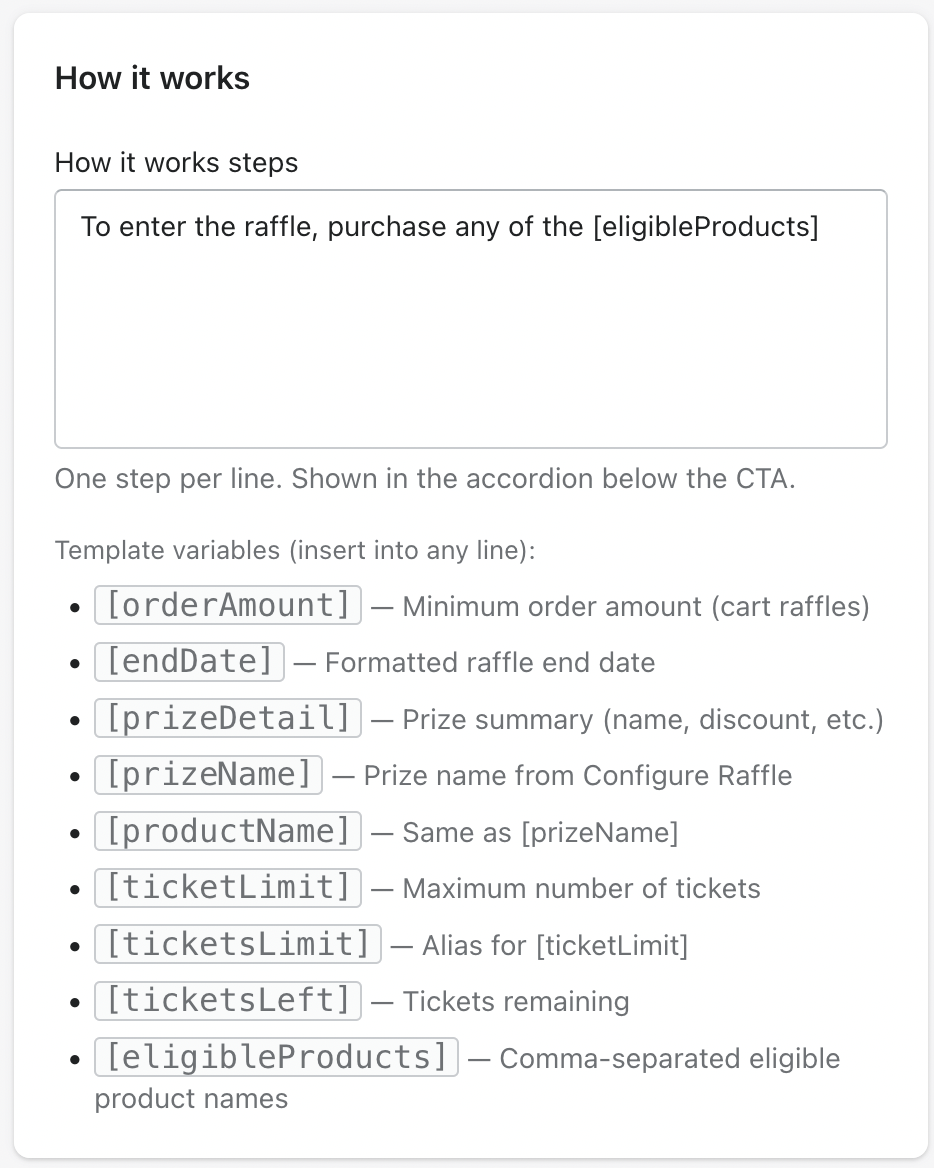
- How it works steps — A multi-line field (one step per line) that populates an accordion below the CTA, explaining to customers how to enter. Supports template variables that dynamically pull in raffle data:
Theme
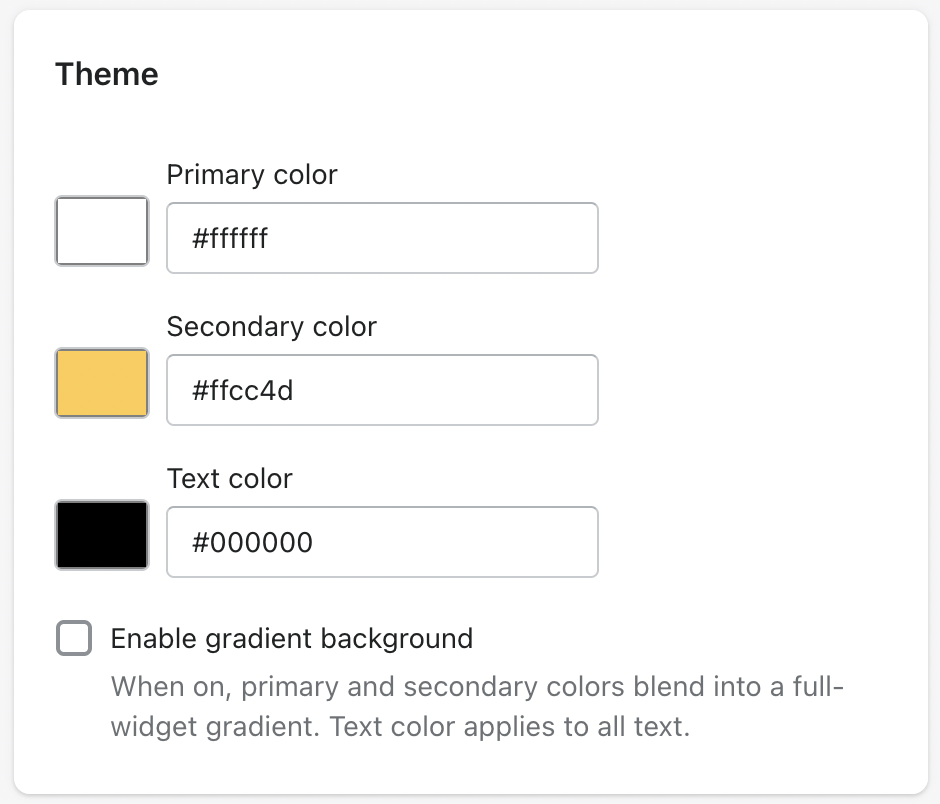
- Primary color / Secondary color / Text color — Hex color inputs controlling the widget's visual theme.
- Enable gradient background — When on, primary and secondary colors blend into a full-widget gradient background; text color still applies to all text on the widget.
A live preview panel on the right updates in real time as these settings are changed, showing merchants exactly how the widget will appear on their storefront.
Configure Email
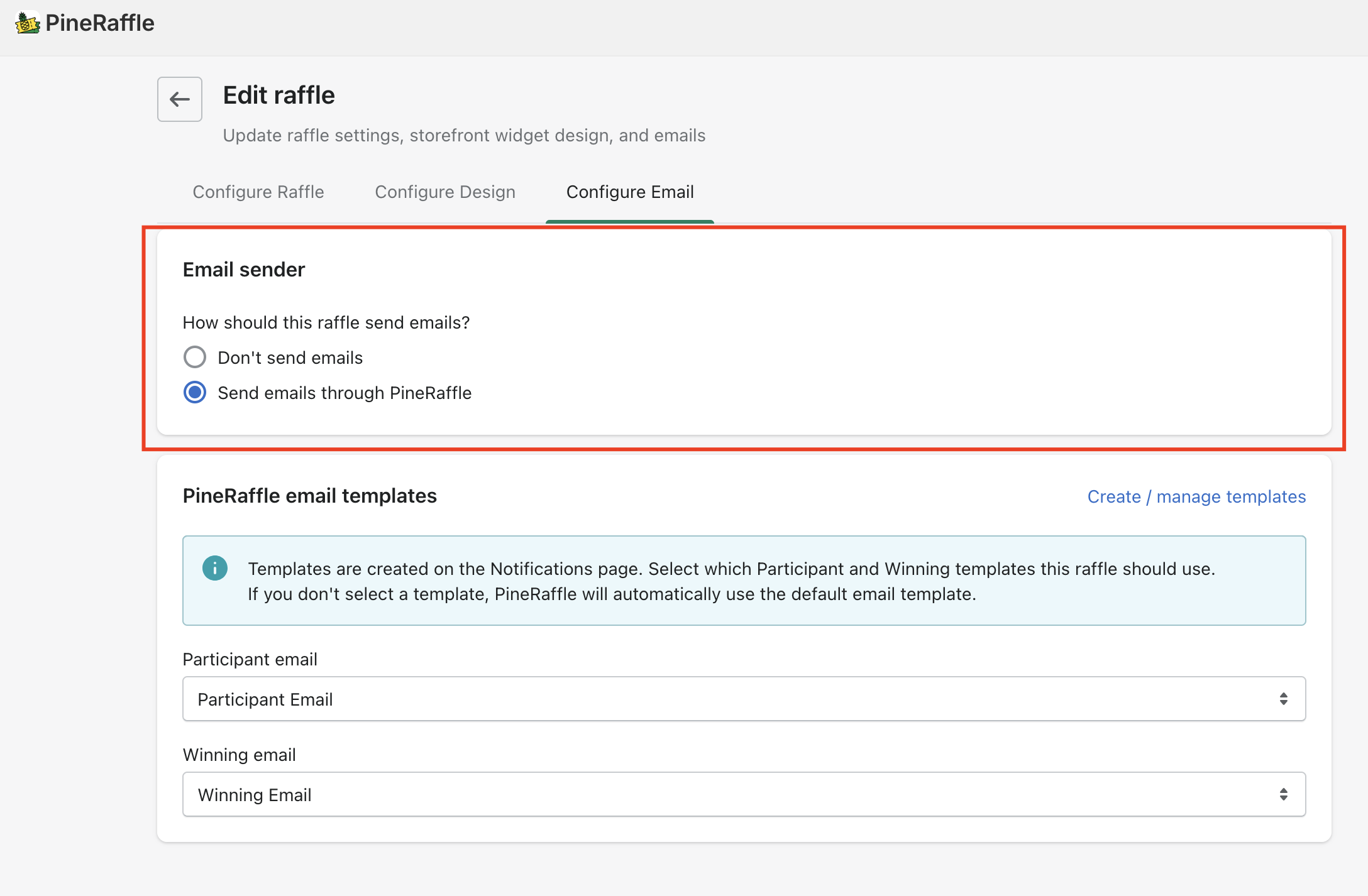
This tab controls whether and how PineRaffle sends transactional emails related to this raffle.
Email sender
- Don't send emails — No emails are sent automatically for this raffle; merchants would need to communicate with participants/winners manually.
- Send emails through PineRaffle — PineRaffle handles sending emails automatically based on the templates selected below.
PineRaffle email templates
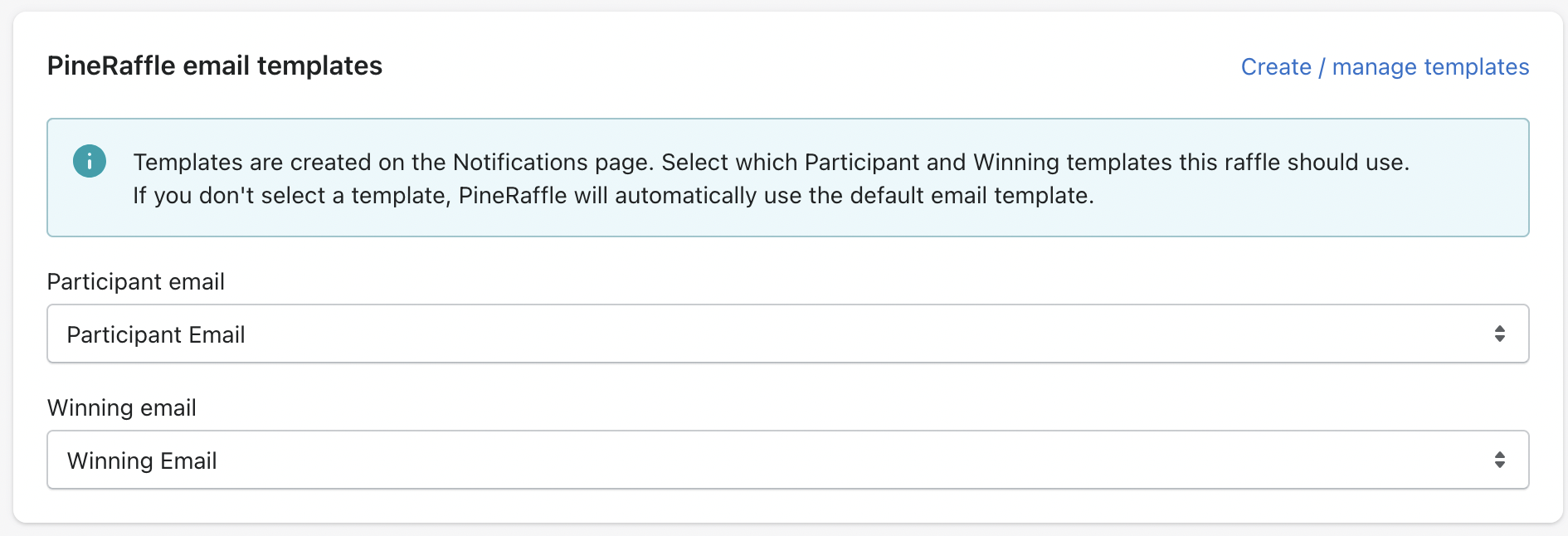
- Templates themselves are created and managed on the Notifications page (linked via "Create / manage templates"). This tab only lets merchants select which template this specific raffle should use.
- Participant email — The template sent to customers when they successfully enter the raffle (e.g. after purchasing an eligible product). Defaults to "Participant Email" if none is selected.
- Winning email — The template sent to the customer(s) selected as raffle winner(s). Defaults to "Winning Email" if none is selected.
- If no template is selected for either field, PineRaffle automatically falls back to its default email template for that type.
Once you've filled out all the details, take a moment to review the summary. If everything looks good, click 'Create' to launch your raffle!
"Congratulations! You've created your raffle.
One last step: activate the Pineraffle app in your Theme Customizer to display it on your store. Please click here to learn more about this configuration.