
Activate PineRaffle widget
Follow these step-by-step instructions to activate and configure the PineRaffle widget on your Shopify store.
Important note: This step is required once you have completed setting up the raffle. Please click here to learn how to create a raffle.
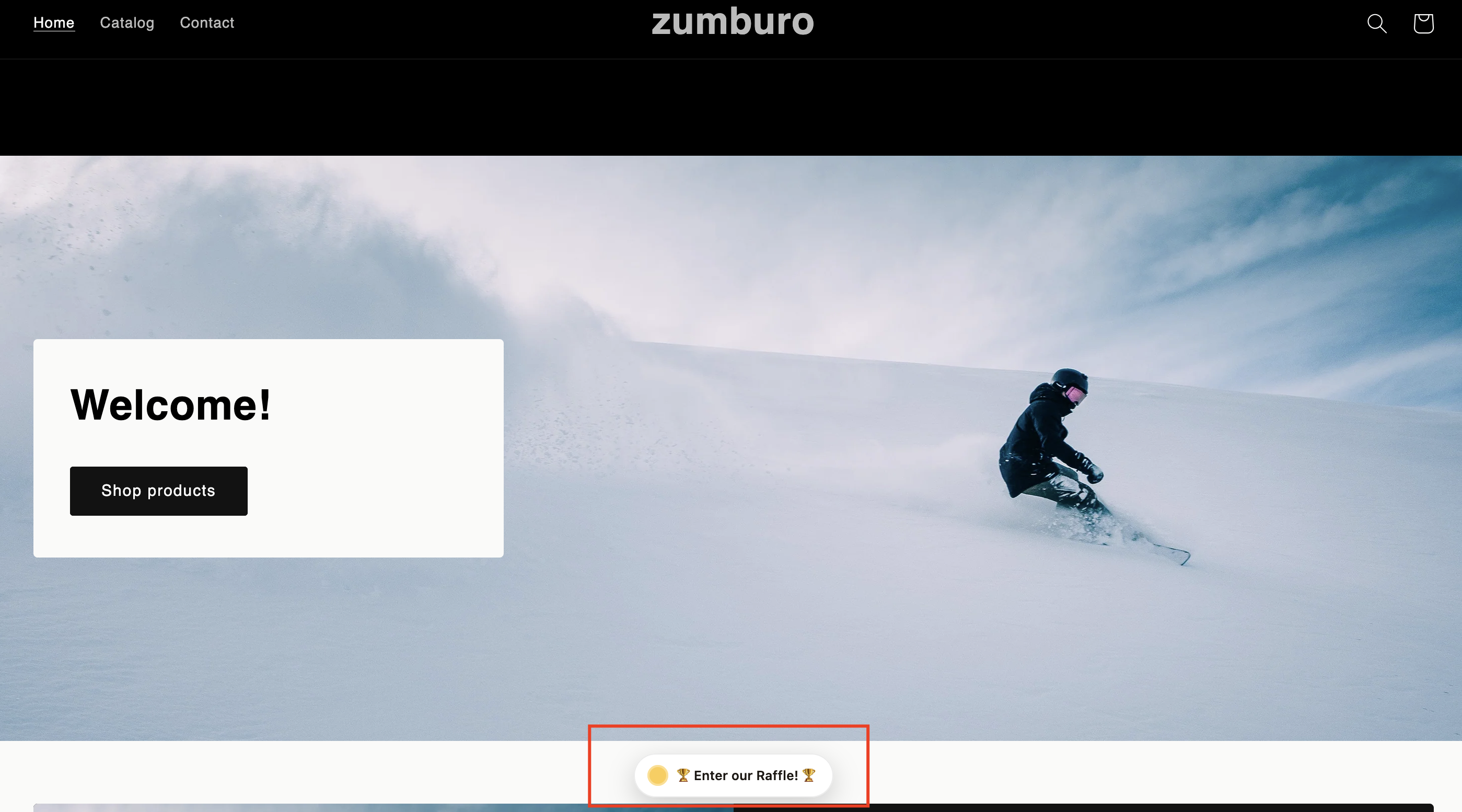
The Pineraffle widget is a component that is visible to your store customers. The customer interacts with the panel to view the details about the raffle, see the price image, the price information, and the count of winners, among other things.
An example of a PineRaffle panel in action
Activation of the PineRaffle widget:
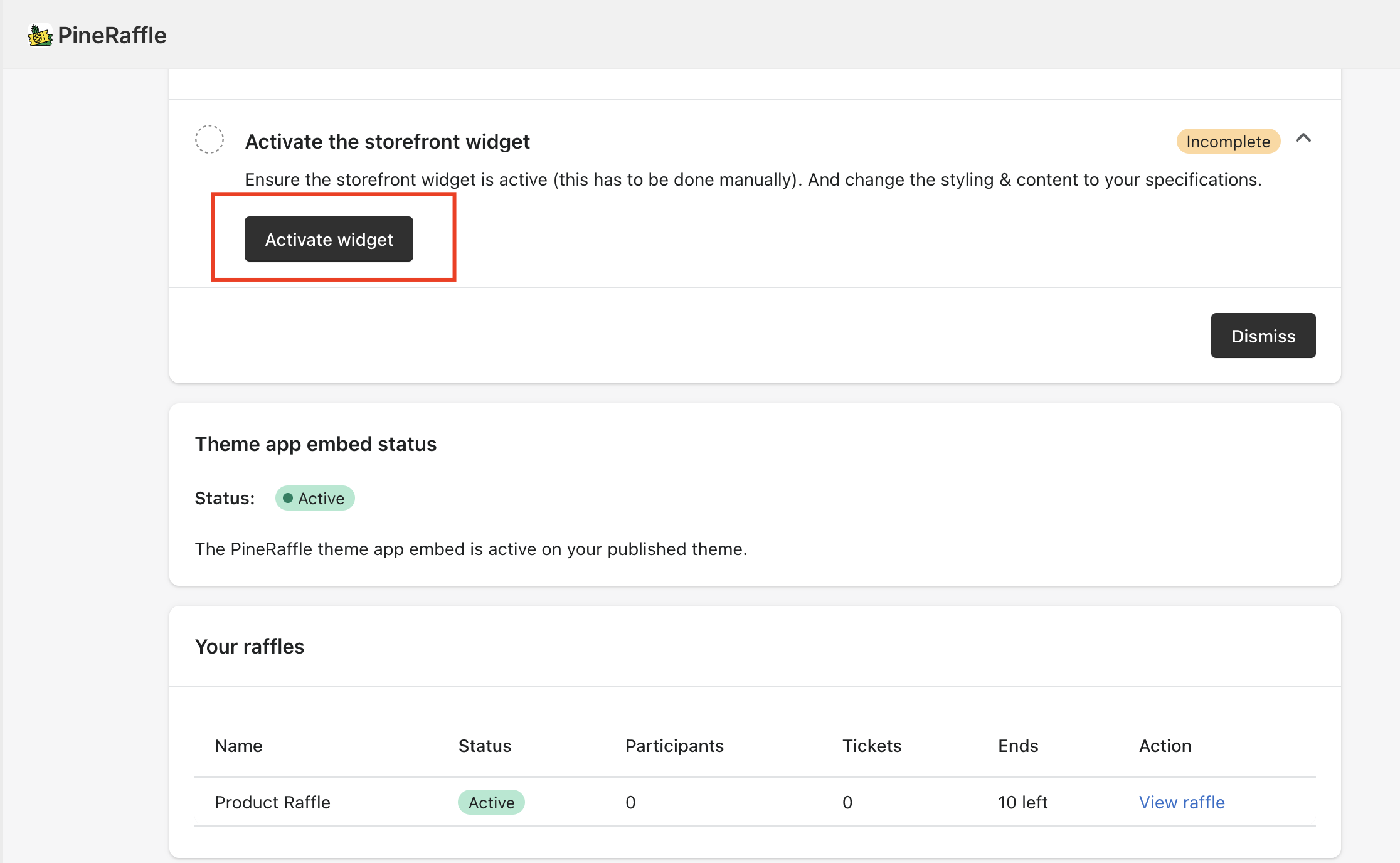
After creating your raffle, the application will redirect you to the Raffle Status page. In the Running tab, you will find the option to customize the storefront widget. Click on the Customize button or you can also click Activate widget from Onboarding step on the app dashboard. See screenshot below
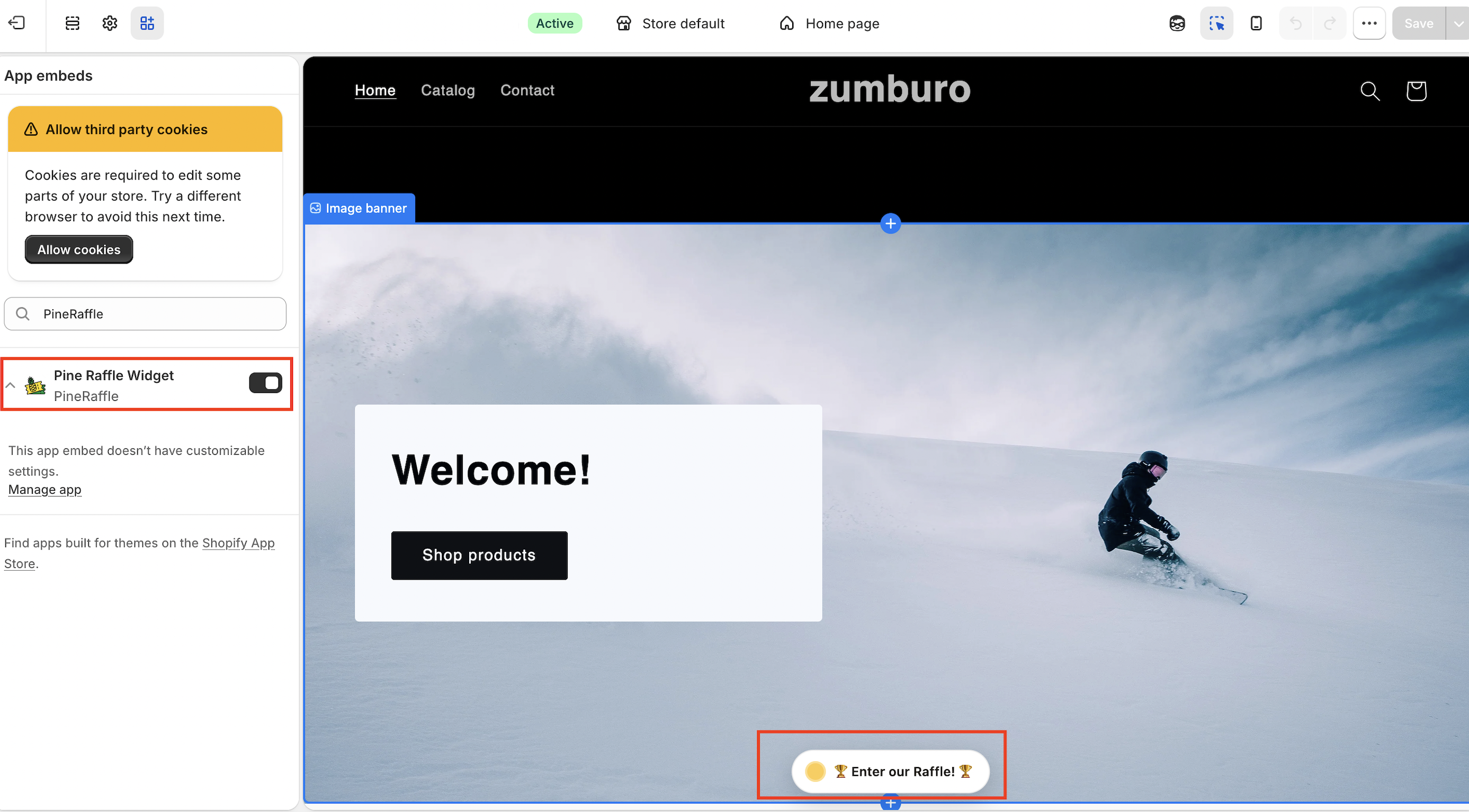
This will take you to the App embeds section of your Shopify store, navigate to the Pine Raffle widget and toggle the switch next. This step is essential for activating the widget and making it available for your store. If left unchecked, the Pineraffle widget will not appear on your store.
Note: Activating the PineRaffle widget/extension is optional and separate from raffle ticket generation. Whether the widget is turned on or off has no effect on your ability to create raffles or generate entries — raffles will run and tickets will be issued normally either way.
Turning on the widget simply displays a visual indicator on your storefront showing customers that a raffle is currently active. It's a good way to boost visibility and engagement, but it's not required for the raffle to function.